
Keyboard shortcuts
Copy page
This page lists the keyboard shortcuts of the Sluice web UI. On macOS, the modifier is ⌘. On Windows and Linux, it is Ctrl.
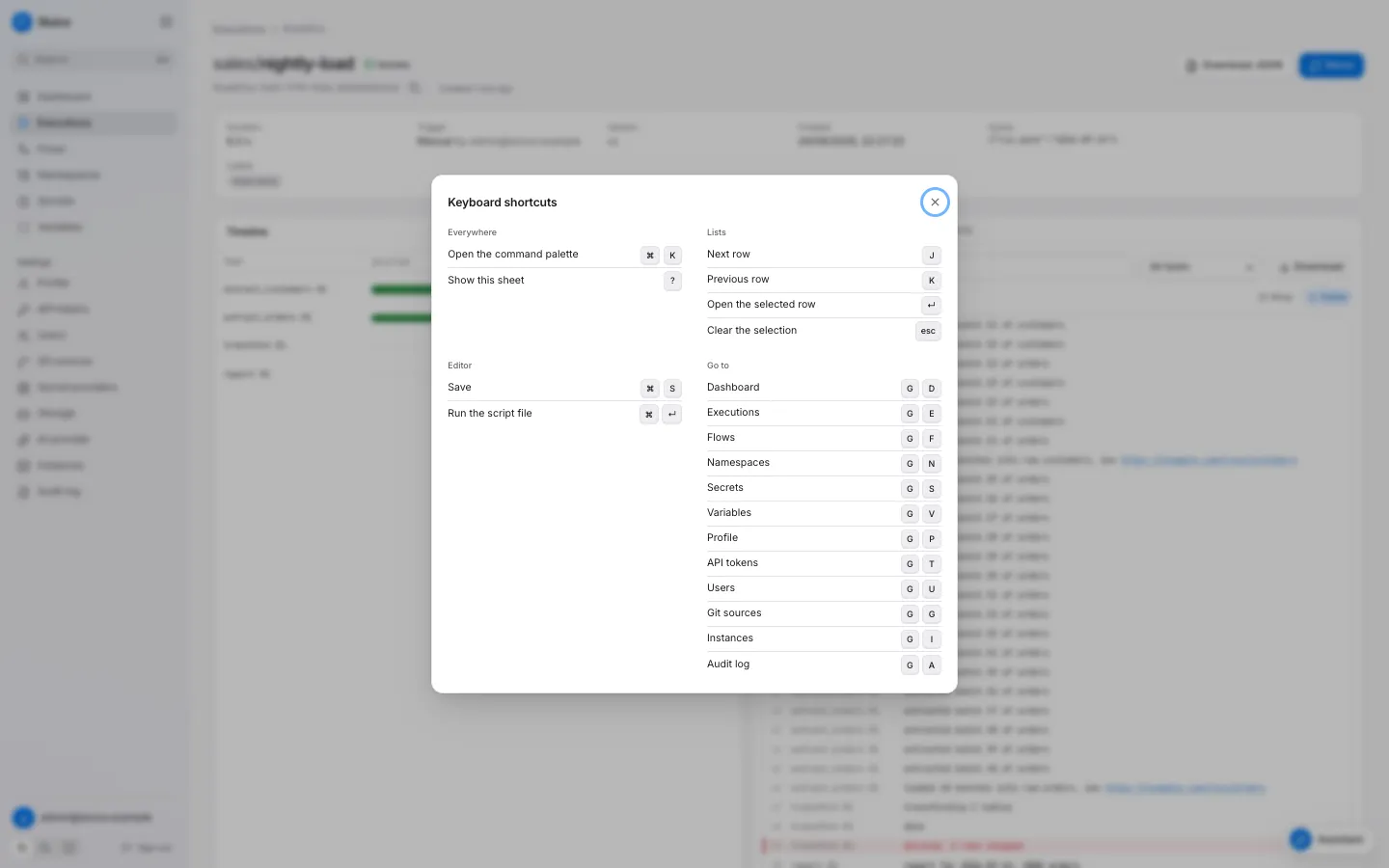
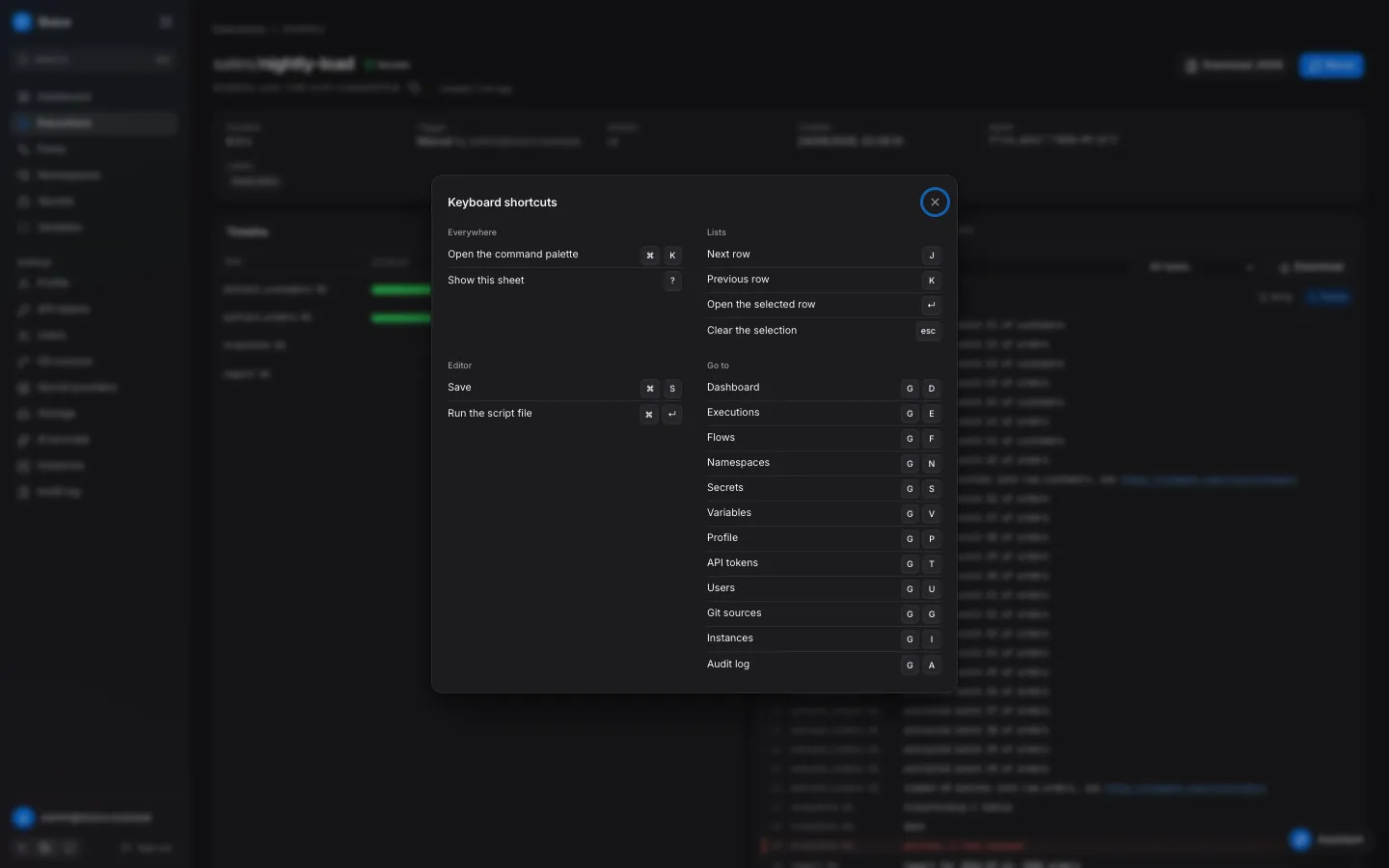
Press ? to show the shortcut sheet. The sheet lists only the pages that your role can open.
When shortcuts apply
Section titled “When shortcuts apply”| Condition | Effect |
|---|---|
| The focus is in a text field, a select or the code editor | Only ⌘K and the editor shortcuts work. |
| A dialog is open | Only ⌘K works. |
| ⌘, Ctrl or Alt is down | Only ⌘K works. The single-key shortcuts do nothing. |
Everywhere
Section titled “Everywhere”| Keys | Action |
|---|---|
| ⌘K | Open or close the command palette. |
? |
Show the shortcut sheet. |
Press g, then the second key within 1.2 seconds.
| Keys | Page | Role |
|---|---|---|
g d |
Dashboard | viewer |
g e |
Executions | viewer |
g f |
Flows | viewer |
g n |
Namespaces | viewer |
g s |
Secrets | viewer |
g v |
Variables | viewer |
g p |
Profile | viewer |
g t |
API tokens | viewer |
g u |
Users | admin |
g g |
Git sources | admin |
g i |
Instances | admin |
g a |
Audit log | admin |
Secret providers, Storage and AI provider have no chord. Open them from the sidebar or the palette.
These keys move through the rows of the table on the page, for example the executions or the flows.
| Keys | Action |
|---|---|
j |
Select the next row. |
k |
Select the previous row. |
Enter or o |
Open the selected row. |
| Esc | Clear the selection. |
Command palette
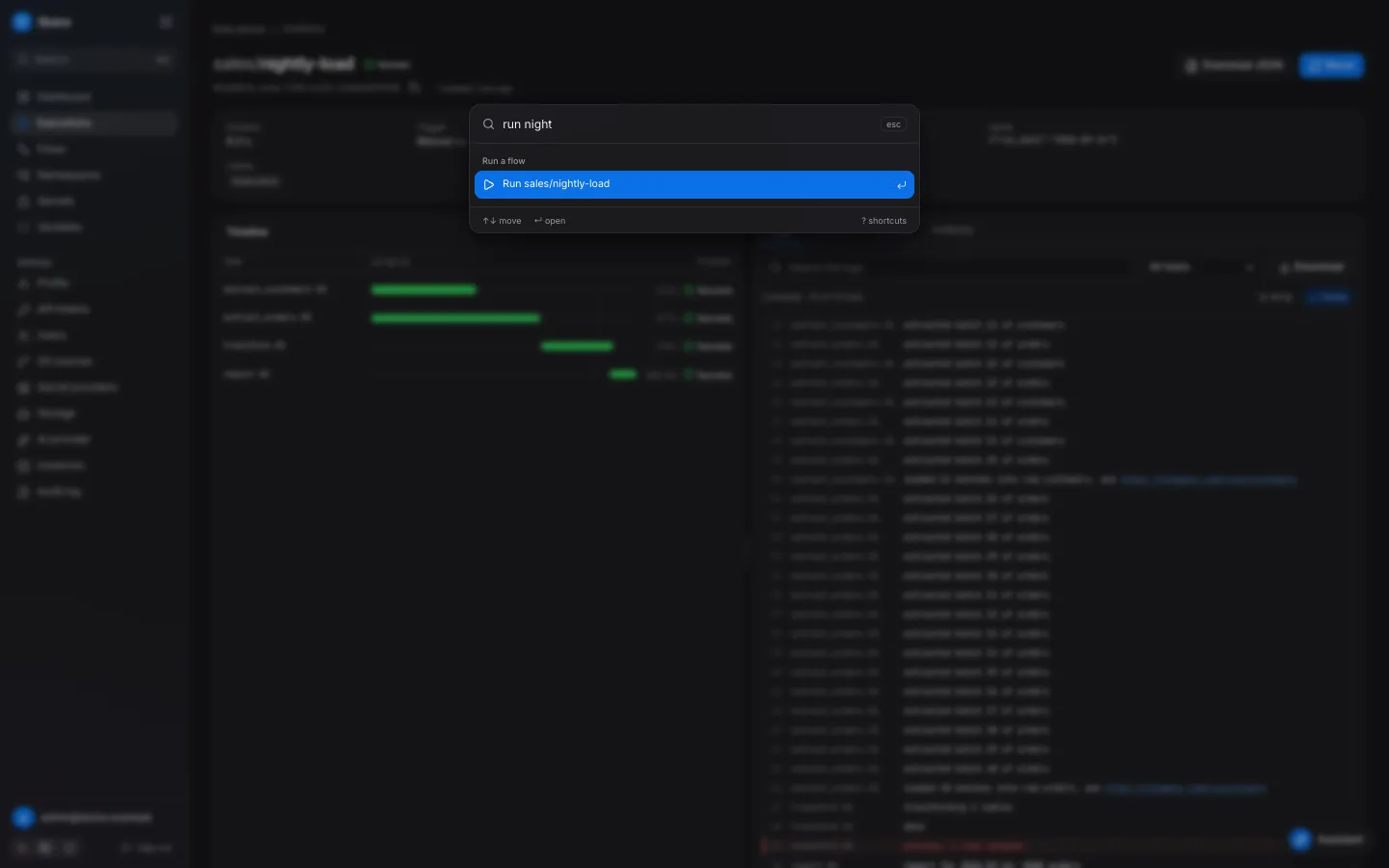
Section titled “Command palette”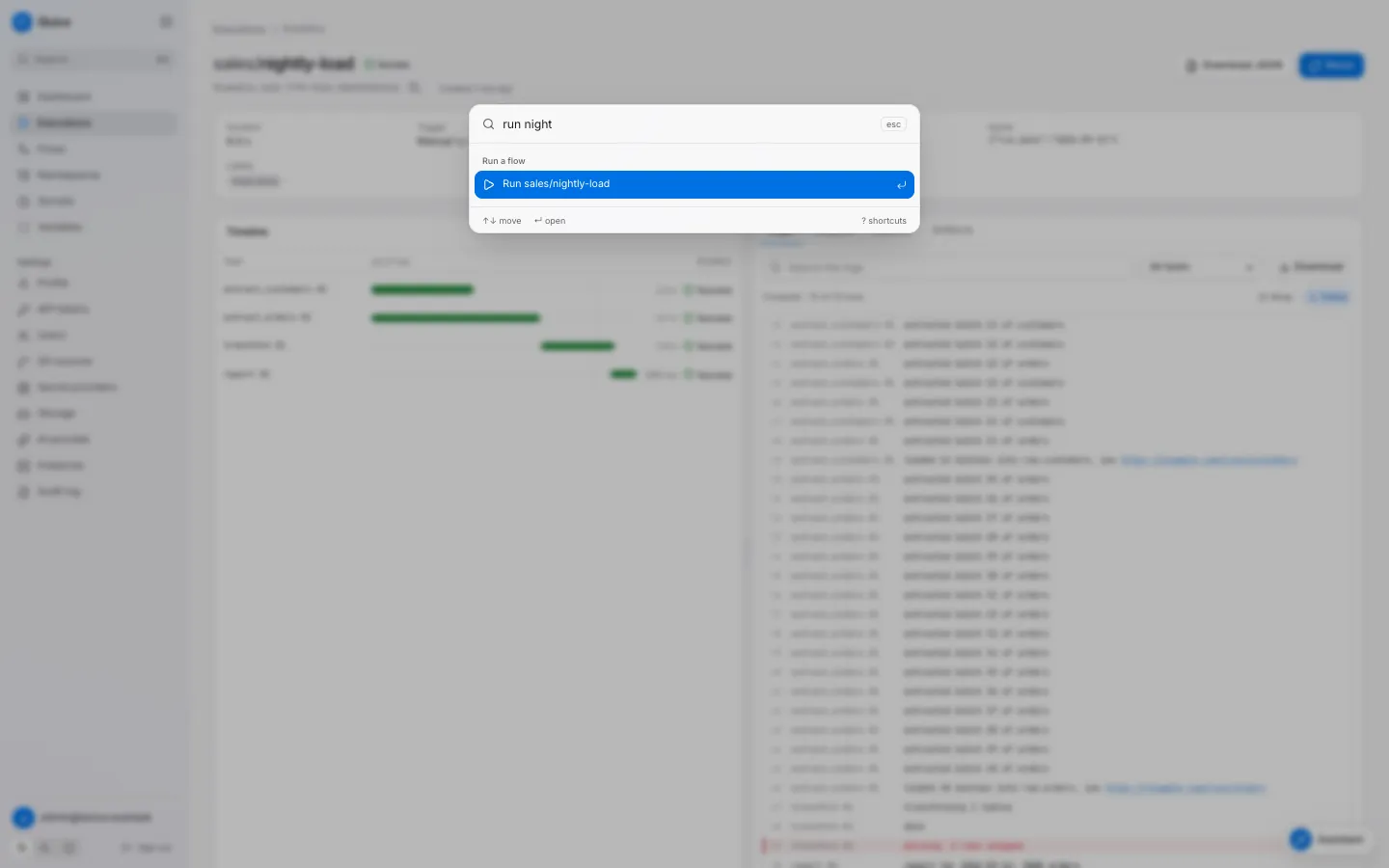
| Keys | Action |
|---|---|
| ↓ or Ctrl+N | Select the next entry. |
| ↑ or Ctrl+P | Select the previous entry. |
| Enter | Run the selected entry. |
| Esc | Close the palette. |
With an empty query, the palette shows the groups Actions, Go to, Recent executions and the commands of the current page. A query searches all groups. Each group shows at most 8 entries.
| Group | Entries | Role |
|---|---|---|
| Commands of the current page | See the table below. | varies |
| Actions | Switch to light theme, Switch to dark theme, Use the system theme, Show keyboard shortcuts. With a query: New file in a managed namespace. | viewer; New file needs editor |
| Run a flow | Run <namespace>/<flow> for each valid and enabled flow. |
operator |
| Go to | Each page of the sidebar, with its chord as a hint. | the role of the page |
| Recent executions | The newest executions, with their state. A query searches the 20 newest. | viewer |
| Flows | Each flow. | viewer |
| Namespaces | Each namespace. | viewer |
| Files | The files of the first 25 namespaces. Only with a query. | viewer |
Run a flow starts the flow at once. When the flow has a required input without a default, it opens the run dialog first.
Commands of the current page
Section titled “Commands of the current page”| Page | Group | Commands |
|---|---|---|
| Execution | This execution | Restart from failed, Rerun, Jump to first failure, Download as JSON, Copy execution ID, Cancel execution |
| Flow | This flow | Run this flow, Open namespace, Show executions of this flow, Show triggers, Compare revisions, Open flow file |
| Namespace | This namespace | New file, Run <file> for the selected script file, Save changes |
A command shows only when it applies. For example, Jump to first failure needs a failed task. Restart from failed and the run and cancel commands need the operator role.
Editor
Section titled “Editor”These keys work in the code editor of a namespace file.
| Keys | Action | Condition |
|---|---|---|
| ⌘S | Open the Save file dialog. In a git namespace, open the Push to branch dialog. | The file has unsaved changes. |
| ⌘Enter | Open the run dialog of the file. | A saved .py, .sh, .ts or .js file, and the operator role. |
The browser save dialog never opens from the editor.
File browser
Section titled “File browser”These keys work when the focus is in the file tree of a namespace.
| Keys | Action |
|---|---|
| ↓ / ↑ | Move to the next or previous item. |
| Home / End | Move to the first or last item. |
| → | Open a folder. On an open folder, move to its first child. |
| ← | Close a folder. On a file or a closed folder, move to the parent folder. |
| Enter or Space | Open the file, or open or close the folder. |
Resize handles
Section titled “Resize handles”Focus a handle with Tab, then use the arrow keys. A double-click on a handle resets the width.
| Handle | ← / → | Shift + ← / → | Home | End |
|---|---|---|---|---|
| Between the file browser and the editor | 16 px | 64 px | narrowest | widest |
| Between the timeline and the inspector of an execution | 2 % | 10 % | 28 % | 72 % |
Log viewer
Section titled “Log viewer”| Keys | Action |
|---|---|
| ↑, Page Up or Home in the log lines | Stop Follow. |
Assistant
Section titled “Assistant”| Keys | Action |
|---|---|
| ⌘Enter | Send the message. |
@ |
Open the mention menu: flows, recent executions and namespace files. |
| ↓ / ↑ | Move in the mention menu. |
| Enter or Tab | Attach the selected mention. |
| Esc | Close the mention menu. Without the menu, close the assistant. |