
Triage a failed execution
Copy page
This guide shows you how to find why an execution failed and how to run it again. You can do it in the web UI, with the sluice CLI, or from an MCP client. The triage card and the assistant need an AI provider. See Set up the assistant.
To start an execution again, you need the operator role. To request a triage, you also need the operator role.
Find the failed task in the UI
Section titled “Find the failed task in the UI”-
Open Executions. Select the Failed and Timed out state filters to list the executions that did not succeed.
-
Open the execution. The red banner under the title shows the error of the execution.
-
Click Jump to first failure above the timeline. Sluice selects the first task run that failed or timed out, and the log viewer shows the logs of this task.
-
Read the inspector. It shows the attempt, the executor and pool, the duration, the queue wait, the exit code, the reason and the error of the task run.
-
Search the log with Search the logs. Sluice highlights the matches. Lines from stderr show in red.
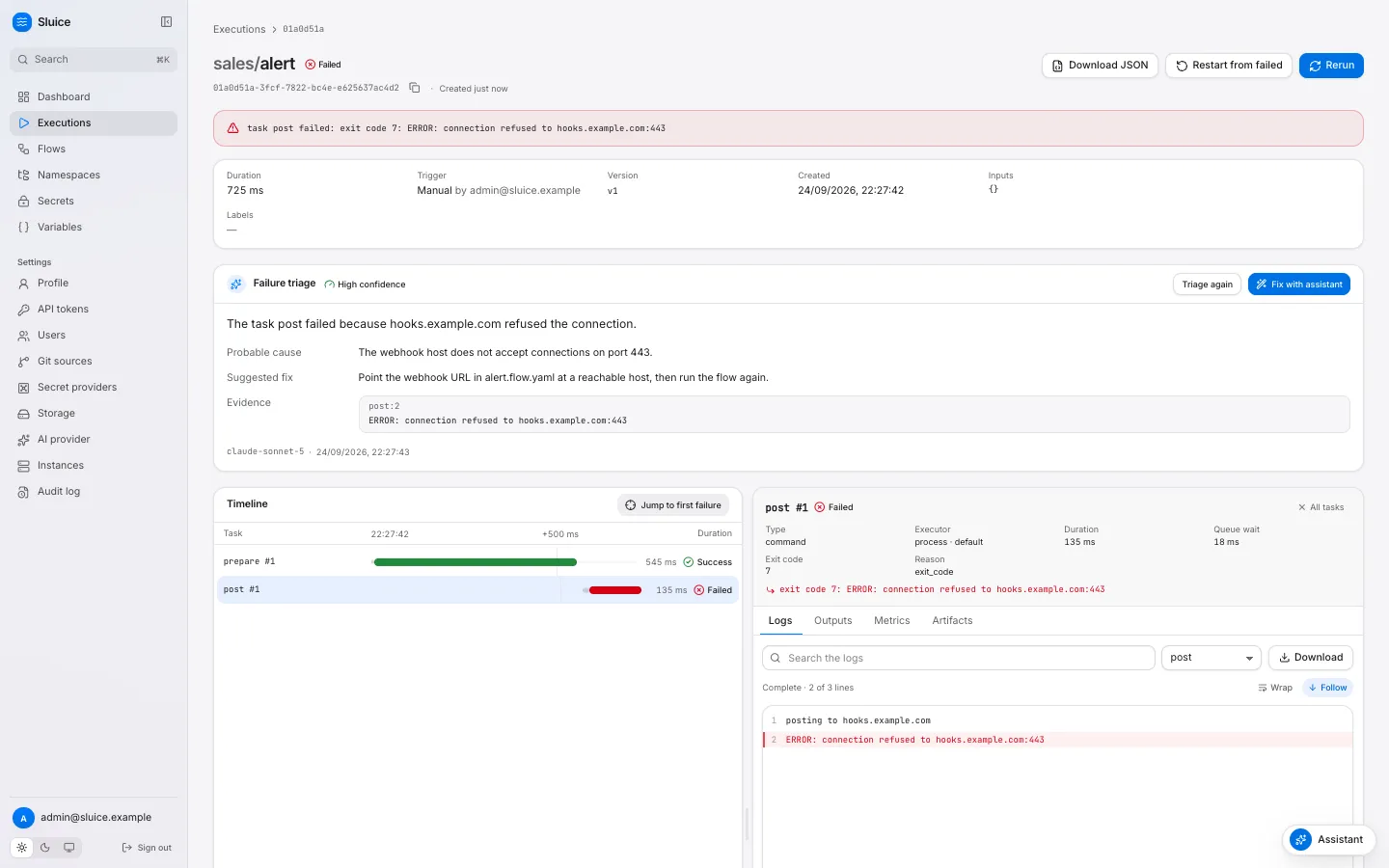
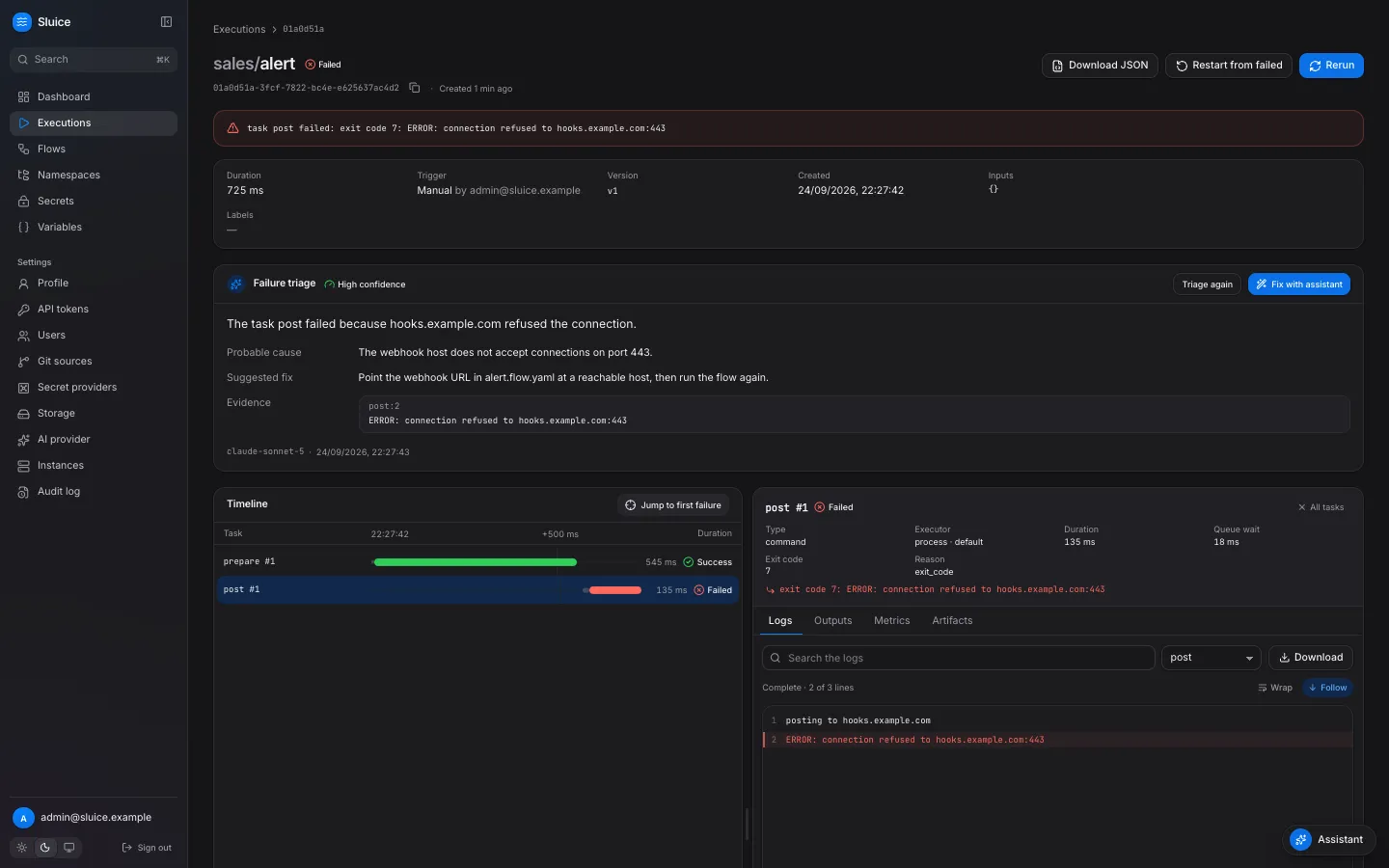
The Reason field tells you what kind of failure it is. For example, exit_code means that the command exited with a code other than 0. lost means that the work stopped without a result. States and reasons lists all reasons.
Read the failure triage
Section titled “Read the failure triage”The Failure triage card shows on a FAILED or TIMED_OUT execution when an admin has set up an AI provider. With automatic triage on, Sluice starts the triage when the execution ends. Otherwise, click Triage.
A triage has these parts:
| Part | Content |
|---|---|
| Summary | One sentence about the failure. |
| Probable cause | The cause that the model found in the context. |
| Suggested fix | What to change. |
| Evidence | Log lines that support the cause, each as task:line with the text of the line. |
| Confidence | Low, Medium or High, as a badge next to the title. |
Sluice removes an evidence line when its text is not in a log line of the failed task. Every evidence line that you see is thus a real log line.
Click Triage again to get a new triage, for example after a change of the provider. The card shows the model and the time of the triage.
Fix it with the assistant
Section titled “Fix it with the assistant”-
Click Fix with assistant on the triage card.
The assistant opens a new conversation. It attaches the execution, its latest triage and the last 100 log lines of the failed tasks. It sends a first message that asks for the cause and a fix.
-
Read the answer. Ask follow-up questions in the same conversation.
-
Attach more context with an
@mention. Type@in the message box, then part of a name. Select a flow, a recent execution or a namespace file. A message can hold 5 attachments. -
Ask for the change. The assistant proposes the files, validates them and shows a diff. It changes nothing until you click Confirm. Click Reject to refuse the change.
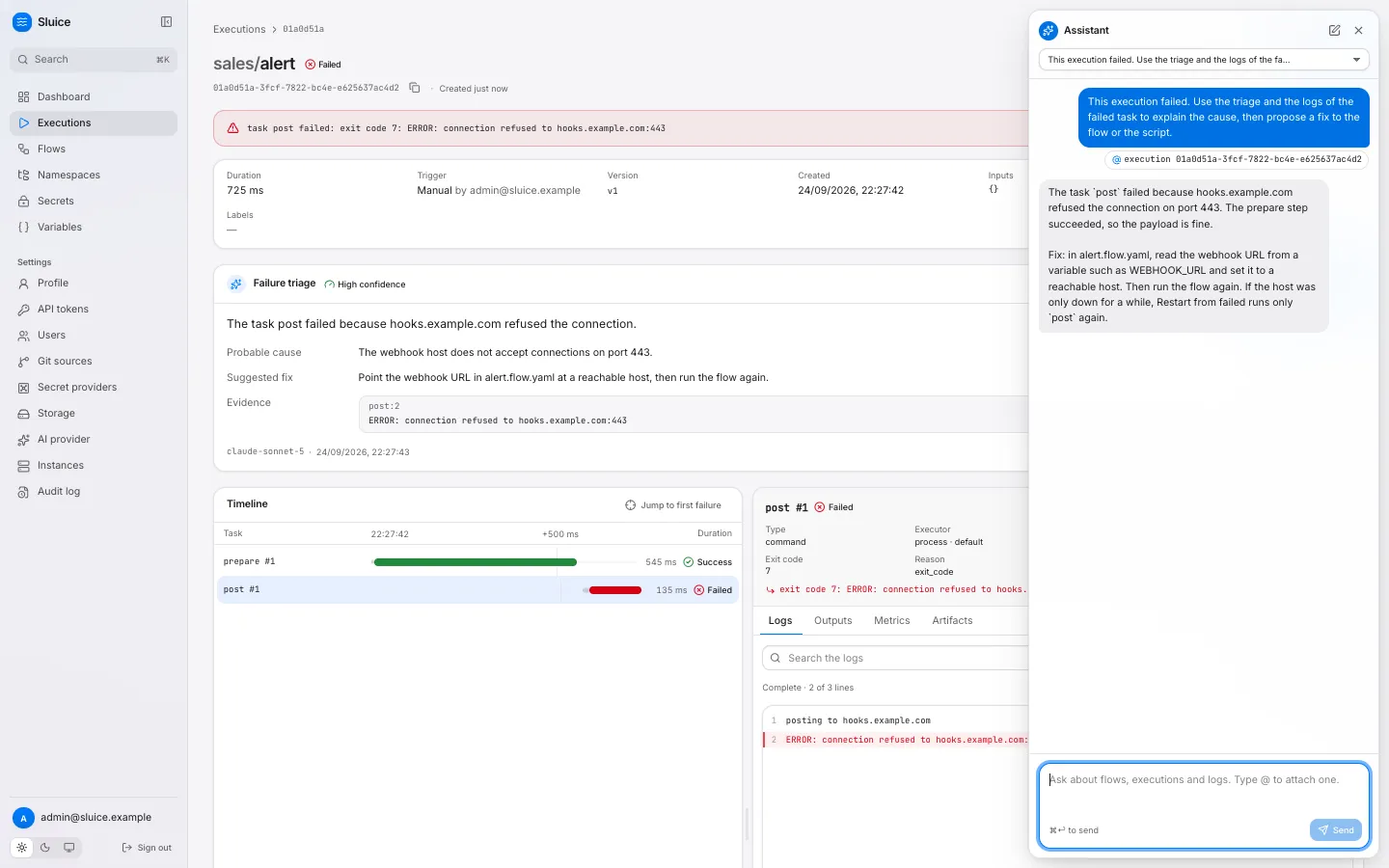
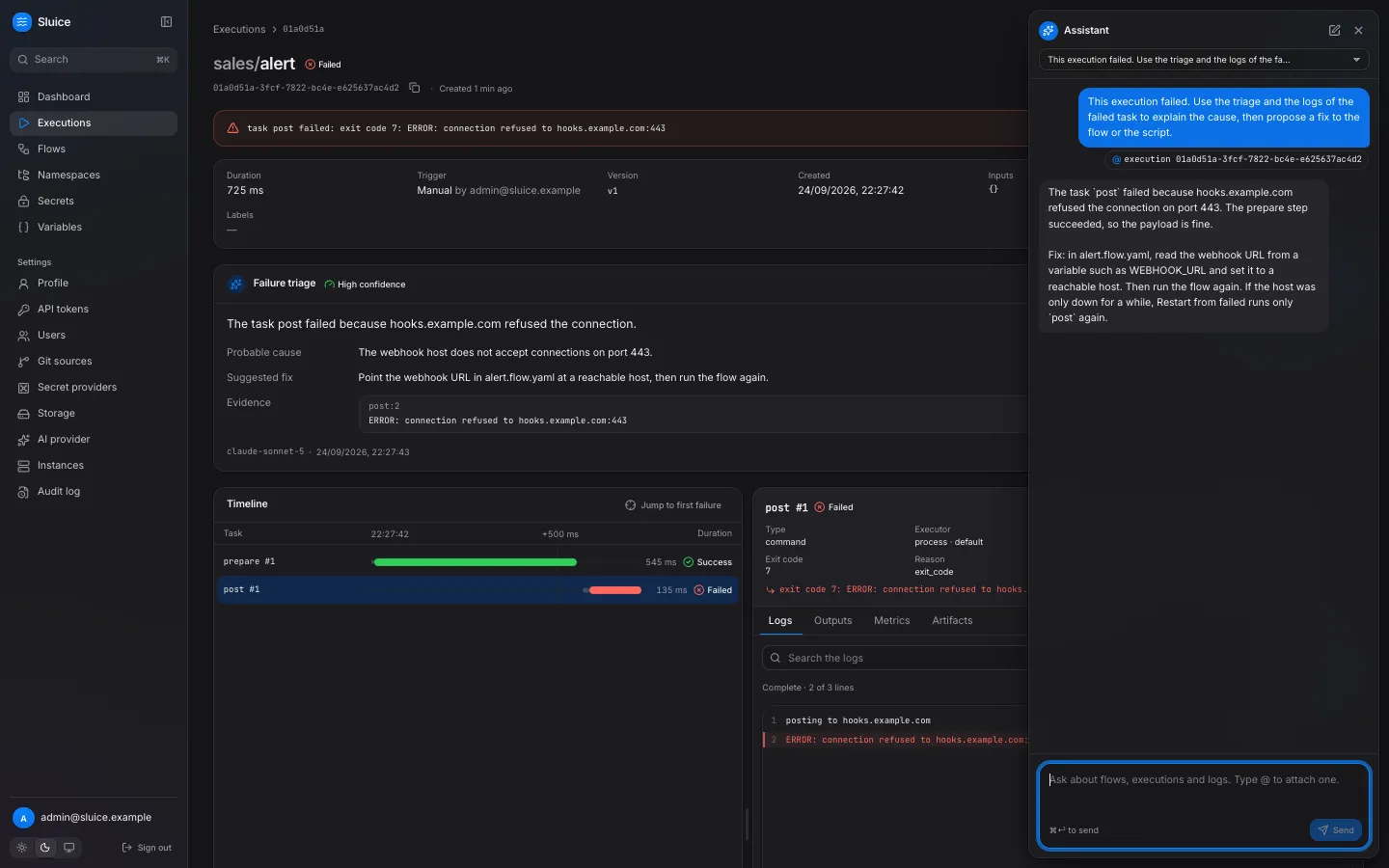
In a managed namespace, a confirmed change creates a new version. In a git namespace, it creates a new branch sluice/<user>/<time> from the last synced commit. Merge the branch in your git host, and Sluice syncs the result.
Run it again
Section titled “Run it again”Choose the action by where the fix is:
| Action | What runs | Files and flow definition | Use it when |
|---|---|---|---|
| Restart from failed | Only the tasks that did not succeed. Sluice copies each successful task run with the reason reused. |
The same snapshot as the old execution. | The fix is outside the namespace files: a variable, a secret, a remote system or a transient error. |
| Rerun | All tasks. | The same snapshot as the old execution. | You want the same run again from the start. |
| Run on the flow page | All tasks. | The newest version of the namespace. | You changed a flow or a script file. |
Restart from failed shows on FAILED, TIMED_OUT and CANCELLED executions. Both Restart from failed and Rerun keep the inputs and the labels of the old execution. The new execution opens when it starts.
Do the same with the CLI
Section titled “Do the same with the CLI”The client commands read SLUICE_URL and SLUICE_TOKEN. Use a token with the operator role to restart.
-
List the executions that did not succeed:
Terminal window sluice executions list --state FAILED,TIMED_OUT --limit 5 -
Show the execution with its task runs, exit codes and errors:
Terminal window sluice executions get "$EXECUTION_ID" -
Print the logs of the failed task:
Terminal window sluice executions logs "$EXECUTION_ID" --task post -
Restart the failed tasks and wait for the end:
Terminal window sluice executions restart "$EXECUTION_ID" --wait
With --wait, the command streams the logs to stderr and exits with the code of the end state: 0 for SUCCESS, 10 for FAILED, 11 for TIMED_OUT. --timeout 10m stops the wait with exit code 14, and the execution continues. See Exit codes.
Add --output json to a command to get the API JSON, for example for a script or a coding agent.
Do the same from an MCP client
Section titled “Do the same from an MCP client”An MCP client calls the same operations as tools. The tools run with the role of the API token of the client.
| Step | Tool | Arguments |
|---|---|---|
| Find the execution | list_executions |
{"state": "FAILED,TIMED_OUT", "limit": 5} |
| Read the task runs | get_execution |
{"execution_id": "…"} |
| Read the triage | get_insight |
{"execution_id": "…"} |
| Read the failed logs | get_logs |
{"execution_id": "…", "failed_only": true, "tail": 200} |
| Search the logs | get_logs |
{"execution_id": "…", "grep": "error"} |
| Restart the failed tasks | restart_execution |
{"execution_id": "…"} |
failed_only keeps the lines of the task runs that failed or timed out. grep keeps the lines that contain the text, without regard to case. A mutating tool such as restart_execution runs at once over MCP, with no confirmation. Sluice records it in the audit log as ai.tool.call.
MCP has no triage tool that starts a new triage. get_insight reads the latest triage, when one exists. See MCP tools and Connect an MCP client.